Ch1.2: VS Code (PWA)
Visual Studio Code (VS Code) is available as a Progressive Web App (PWA). This allows you to run VS Code directly in your browser, with the same look and feel as the desktop version.
We use Microsoft Edge because it has the best PWA support on Windows, macOS, Android, and Linux. Do not use Firefox or Safari — they do not support filesystem access, which is required for VS Code PWA to work properly.
Install via PWA Store
Open the PWA Store and type vscode into the "Search Apps..." input box.
Use the PWA Store to open the website of Visual Studio Code or VS Code Insider.
Then, use the same method we used to install the PWA Store itself:
click the “Install App” button on the right side of the address bar in Microsoft Edge.
Direct Installation
You can also install VS Code directly by visiting its URLs:
However, the PWA Store is more convenient since it provides access to many other applications in one place.
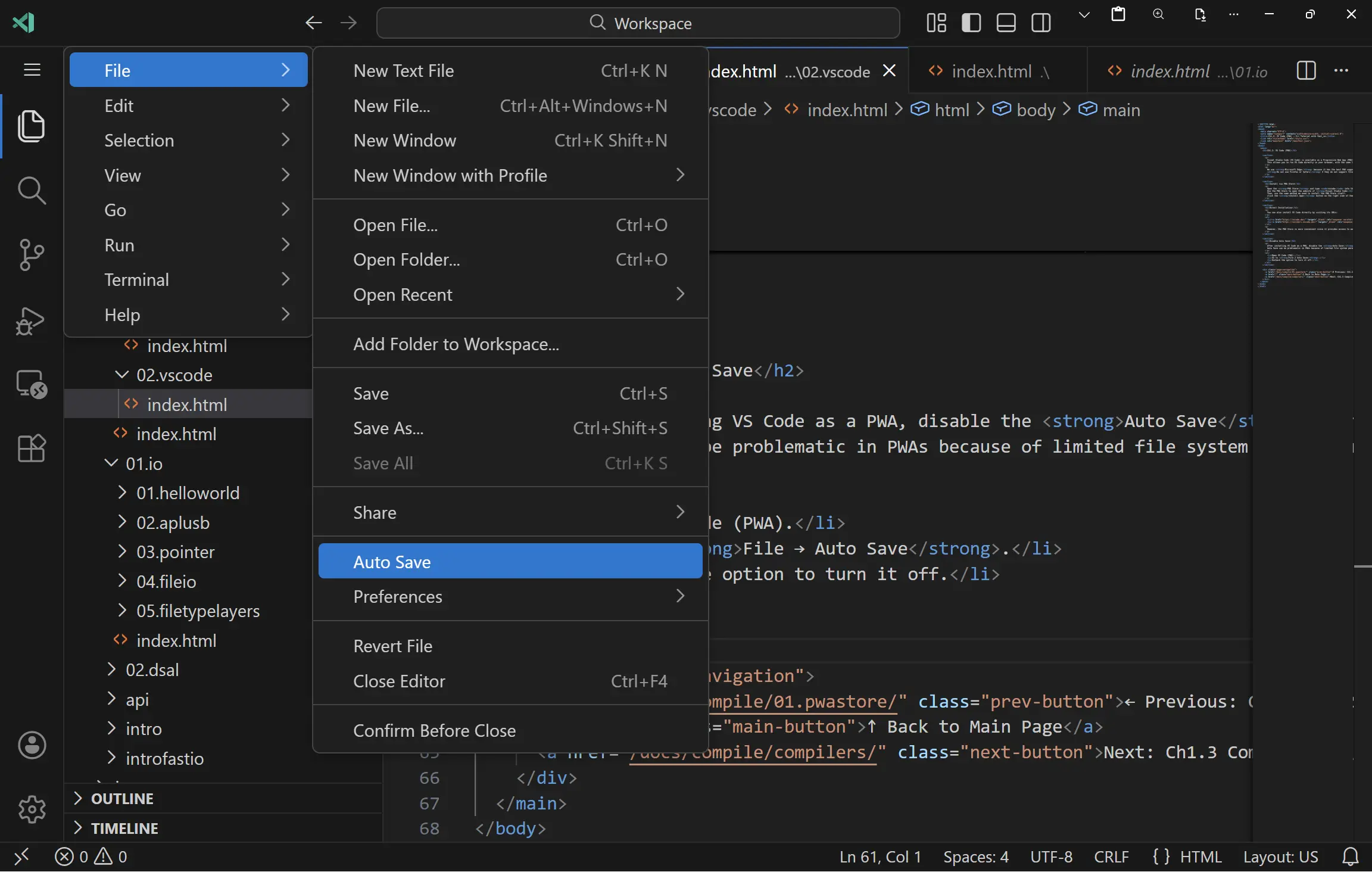
Disable Auto Save
After installing VS Code as a PWA, disable the Auto Save feature. Auto Save can be problematic in PWAs because of limited file system permissions and may not behave correctly.
- Open VS Code (PWA).
- Go to File → Auto Save.
- Uncheck the option to turn it off.